Ubuntu 10.10 Release Candidate Review

Ubuntu 10.10 (Maverick Meerkat) Release Candidate 
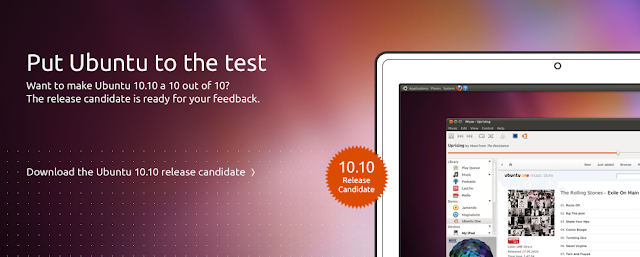
The Ubuntu Developer team has announced that the Last development release of Ubuntu 10.10 Maverick Meerkat is out. Ubuntu 10.10 RC is now avialable for download. It has gone through a lot of improvements since alpha and now its time for the final touches. The Stable release of Ubuntu 10.10 is just 96 hours away !


Download :- 

Lets take a look at the Changes :-


1) Ubuntu 10.10 Gnome :-

  • The GNOME base platform has been updated to the current 2.32 versions. This particularly includes the new dconf and gsettings API. 
  • Evolution was updated to the 2.30 version, which operates much faster compared to the version in Ubuntu 10.04 LTS. 
  • Shotwell has replaced F-Spot as the default photo manager. 
  • Gwibber has been updated to support the recent change in Twitter's authentication system, as well as changing the back end storage to improve performance. 
  • The Sound Indicator has been enhanced to include music player controls. 
  • The Ubuntu Software Center has an updated look and feel, including the new "Featured" and "What's New" views for showcasing applications, an improved package description view, and a "For Purchase" software category has been added. You can also now easily access your package installation history too. 
  • Ubuntu One: Polished desktop integration with new sign up and sign in process. Tighter integration with Ubuntu SSO. Nautilus enhancements for managing folder sync preferences. Faster file sync speed. Share links to music within the Ubuntu One Music Store.
2)Kubuntu 10.10 :-
  • Kubuntu 10.10 RC comes with the latest KDE Software. KDE Platform, Workspaces and Applications were updated to 4.5.1. 
  • For 10.10 Beta, Kubuntu has merged the Desktop and Netbook images into one image featuring both the Plasma Desktop and Plasma Netbook workspaces. The appropriate workspace for your machine will be launched at login, you can also change the workspace in System Settings. 
  • Plasma Netbook now sports the Global Menu by default. 
  • The defaults web browser is now Rekonq, a KDE browser based on Qt Webkit. 
  • The new KDE bluetooth application collection Bluedevil is now installed by default. 
  • Pulseaudio is the default sound server to match other Ubuntu variants. 
  • KPackageKit updates bring a faster backend and an updated UI with an application based view. It also has new features such as a backup/restore tool for the list of installed packages. 
  • Kubuntu's installer, Ubiquity, now offers install of restricted packages during the OS install. Install starts after partitioning making it a quicker experience. 
  • Qapt-batch now replaces install-package as the update/batch-installer utility 
  • Qt was updated to the current 4.7 release and Qt Webkit to 2.0. 
  • Kubuntu Mobile Tech Preview is a new variant with a workspace suitable for smart phones.

3)Ubuntu Netbook Edition 10.10:-
  • The new Unity interface is now the default in Ubuntu Netbook Edition. It includes places for launching applications and browsing files, semantic search through the usage of zeitgeist, optimizing vertical space with a global menu bar and maximizing application by default. A launcher is also available for keeping and dealing with mostly used applications. All favorites from UNE lucid or gnome panel items and desktop shortcuts are automatically transitioned to the launcher on first run.
  • In addition to that, the date and time indicator now has a real calendar widget and is included by default. 
  • The standard photo management application has been switched to Shotwell and UNE comes will all goodness of the Desktop Edition too. Evolution is now performing a special mode more suited for netbook screen size. 
  • UNE needs graphical driver acceleration to be able to run. Otherwise, you should be warned about missing them and will be logout and proposed to run standard ubuntu desktop session.
Installation :-
Installing Ubuntu 10.10 is similar to the previous versions of Ubuntu but its more fun coz of the new Ubiquity Installer with improved looks. Follow the steps here for installation


Desktop :-
Take a look at the Ubuntu 10.10 desktop screenshots :-


Enjoy Ubuntu 10.10 :) 


VMware Virtualisation


VMware, Inc. is a provider of virtualization software.The company was founded in 1998 and is based in Palo Alto, California.The Company is majority owned by EMC Corporation .VMware's desktop software runs on Microsoft Windows, Linux, and Mac OS X.VMware's enterprise software, VMware ESX Server, runs directly on server hardware without requiring an additional underlying operating system.Founded in 1998 , this enterprise today produces best virtualisation solution for desktops and servers.VMware software provides a completely virtualized set of hardware to the guest operating system.VMware software virtualizes the hardware for a video adapter, a network adapter, and hard disk adapters.The host provides pass-through drivers for guest USB, serial, and parallel devices.
In this way, VMware virtual machines become highly portable between computers, because every host looks nearly identical to the guest.
In practice, a system administrator can pause operations on a virtual machine guest, move or copy that guest to another physical computer, and there resume execution exactly at the point of suspension.
Alternately, for enterprise servers, a feature called VMotion allows the migration of operational guest virtual machines between similar but separate hardware hosts sharing the same storage.
Each of these transitions is completely transparent to any users on the virtual machine at the time it is being migrated.VMware's products use the CPU to run code directly whenever possible .
When direct execution cannot operate, such as with kernel-level and real-mode code, VMware products re-write the code dynamically, a process VMware calls "binary translation" or BT. The translated code gets stored in spare memory, typically at the end of the address space, which segmentation mechanisms can protect and make invisible. For these reasons, VMware operates dramatically faster than emulators, running at more than 80% of the speed that the virtual guest operating-system would run directly on the same hardware.

Basically for desktop theere are 5 products of VMware :
*VMware Fusion
*VMware Workstation
*VMware View
*VMware Player
*VMware ACE
You can visit here for product details,registration and downloads : http://www.vmware.com/support/

for Vmware player download fow 32 bit windows, refer this link : http://downloads.vmware.com/tryvmware/?p=player&lp=default
If you use other software , you may refer this link to get your desired dwonload :
http://downloads.vmware.com/d/details/player_3_0/ZGp0YmQlJSpiZGVkZA==#version_history

.....

WUBI : Install Ubuntu in 2 clicks inside Windows

WUBI : Windows based ubuntu installer : To install dual boot with Ubuntu in just 1 click . Its easy ,its safe and its really good. For details visit : http://www.linoob.com/2009/12/wubi-windows-based-ubuntu-installer/

Wubi also creates a swap file in the Windows file system (c:ubuntudisksswap.disk), in addition to the memory of the host machine. This file is seen by Ubuntu as additional RAM. A related project named Lubi (Linux based Ubuntu installer) is also present which lets you install Ubuntu in Linux host machine. After installation , you will be able to dual boot b/w your own previous Linux and Ubuntu.

openSUSE 11.1 :

An OS created by the Novell coporation  . SUSE Linux (pronounced /ˈsuːsə/) is a computer operating system. It is built on top of the Linux kernel and is distributed with system and application software from various projects. Suse Linux is of German origin and mainly developed in Europe. The first version of this distribution appeared in early 1994, making SUSE the oldest existing commercial distribution. It is known for its YaST configuration tool. The developer rights are owned by Novell, Inc. since 2003, when the company bought SUSE. Novell, one of the founding members of the Open Invention Network, opened widely the distribution development to outside contributors in 2005, creating the openSUSE project.

This post is for New openSUSE users (ie newbies to openSUSE) to provide basic guidance in burning your installation CD/DVD and installing openSUSE. This is for simple, and not complex setups.


1. Where to find the openSUSE installation ISO file

Note, typically you go to openSUSE web site, and download an ".iso" file. Software.openSUSE.org

You then burn that to a CD or DVD (dependent on whether you downloaded CD or DVD version) the installation CD/DVD. This first post has some important hints on that.

Please note, if you decide to download openSUSE-11.1, pay very close attention to the MD5 checksum.

2. Checking MD5 SUM on ISO FILE from Linux

The theory here is one downloads the appropriate .iso file(s). For those who already have Linux, one then runs "md5sum file.iso" (or something like that) in a konsole, against the downloaded file (which in my example I called "file.iso"). This will give an md5 checksum value. One then compares that to the checksum that is on the download web site. If they don't match, you have a problem, and you MUST download again.

Typically, bittorrent downloads are more reliable than FTP or HTTP downloads. Another new download method is metalink - ref openSUSE Lizards » Best Way to Download openSUSE (more detail here Downloading openSUSE FAST using Metalink - openSUSE Forums )

3. How to check the MD5SUM from Windows:

One completely free, MS-Windows application for running the md5 checksum on a number of different operating systems, is here on sourceforge.net: md5deep

Another gui md5 checker for MS-Windows 95/98/NT (it works in Xp as well even though it doesn't say so). The file is md5.exe (248kB) and can be downloaded from MD5 GUI for Windows. It's under the gpl licence and you can download the source if you want.

4. Burning the CD/DVD

Next, when one burns, burn the CD/DVD iso file as an "image file". For windows users, in Nero, this does not mean selecting some iso option, but rather means selecting the "image" option (this is under "file > burn image").

When burning, please burn at a VERY SLOW speed. VERY SLOW. Also, choose a CD/DVD media that is of the highest quality you can get. Don't use some no name bargain basement brand CD/DVD that you know nothing about (see the end of this post for more information on this subject).

There is further excellent guidance, providing help on "burning the ISO image" on the opensuse wiki:
http://en.opensuse.org/Download_Help#Bur...age.28s.29

5. Ensure BIOS is set properly

Also, on the PC where the installation is to be done, ensure in one's BIOS that the PC is set to boot from the CD/DVD drive before booting from the hard drive.

6. Check MD5SUM again from within installation CD/DVD

When installing openSUSE-11.1, you may be given an option to check the MD5 checksum on your CDs (it is called a "media check" on the initial installation menu). Take the extra hour (or more) to do this!! It will potentially save you many evenings later on down the road, looking for some elusive problem that you can't find.

7. Installation Menu

If you have a simple PC setup, with only a single MS-Windows partition on your drive, then likely you can leave the "Use Automatic Configuration" selected. BUT if you believe you may have to change the location of the openSUSE boot manager GRUB in your Master Boot record then you MUST deselect "Use Automatic Configuration". If you do not, you will NOT be able to control the location of your boot manager GRUB.


In particular, Thinkpad Lenovo owners- PAY ATTENTION to this. You may need to deselect "Automatic Configuration" and then follow the guidance in the openSUSE 11.1 Release Notes !!

8. Desktop Selection

Your two main desktop choices under the automatically installed Linux X Window System are GNOME or KDE 4 . Both are good. Surf the web for more info. Alternatively, if you like KDE but

wish to try the older more proven KDE-3.5.10 , then select "Other" and choose KDE3.5. (You also have a choice of Xfce , or minimal X window or minimal server (text) installation).

Please note the Live CD for KDE ONLY comes with KDE-4.1.x and not KDE-3.5.10. To quickly get KDE-3.5.10 one must install off of the DVD and not the Live CD. There are ways to obtain KDE-3.5.10 via CD (using the KDE-4.1.x CD as an install CD for 3.5.10) but that is outside the scope of this stickie.

9. MS-Windows Users - you MUST defrag your MS-Windows partitions before installation of openSUSE. That is because if you have not already prepared a partition for openSUSE, then openSUSE installer will try to carve up your MS-Windows hard drive (allocating space for both MS-Windows and Linux), and a badly fragmented drive can cause problems.


and you are done.

Now the open screen of openSUSE will be like thes :


Enjoy the worlds most trusted Linux distribution having the largest community and support

Posted by Abhishek aka CellDwelleR.

top